
ATMA Stash to D2R Converter
Web-based converter for moving old ATMA or PlugY stash files into Diablo II: Resurrected .d2i stash format.
Reviewed Legacy
Community loot filter system for Path of Diablo with launcher download, auto-update support, item highlighting and clutter reduction.
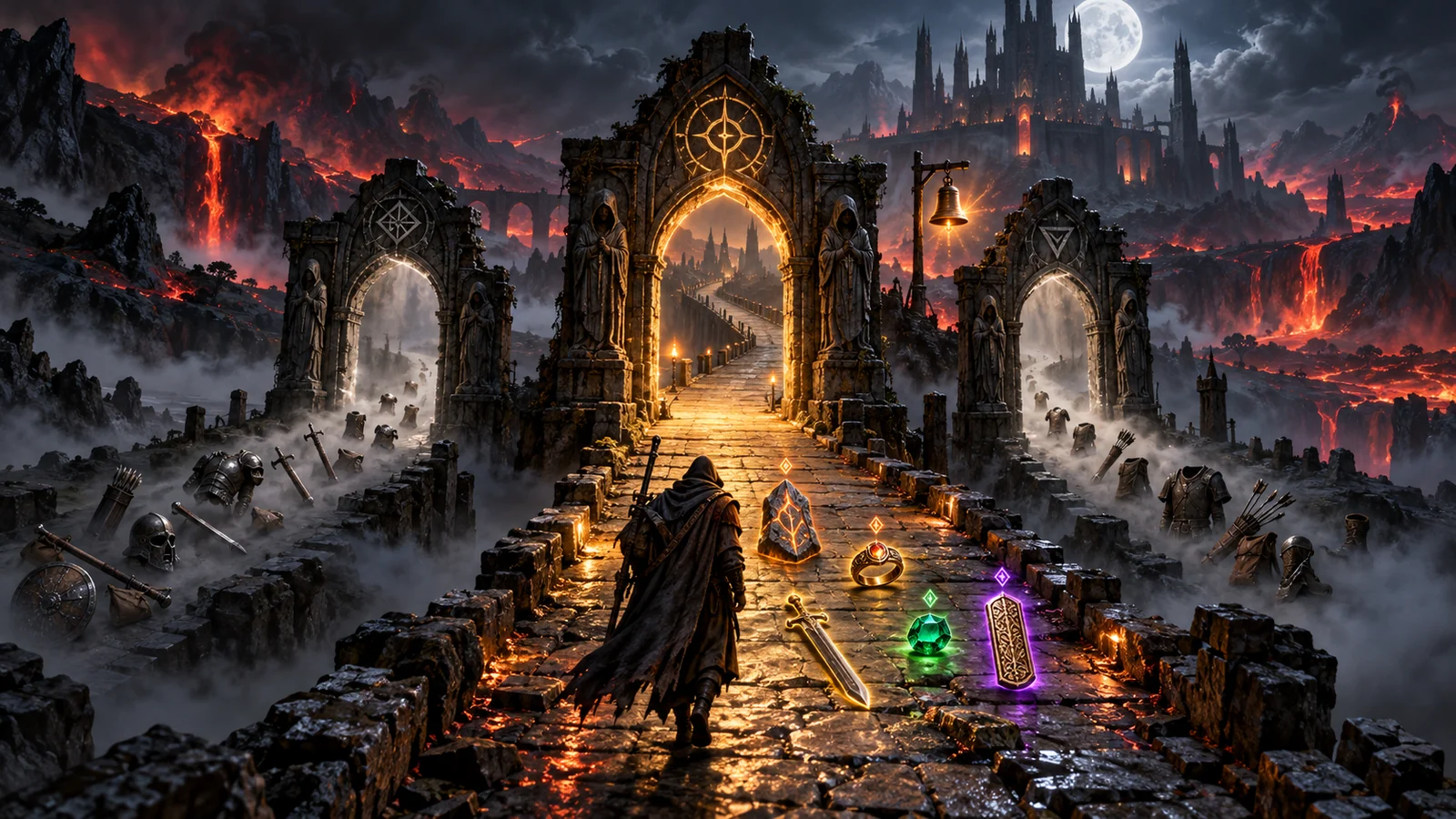
This page covers the loot filter system and community filter list for Path of Diablo, one of the longest-running Diablo II mods and servers. Every PoD loot filter is a plain text file of display rules that decides how each item appears on the ground: its colour, its label, extra information such as sockets or item level, and whether it is shown at all. Filters can be installed from a URL in the PoD launcher and updated automatically, and players can keep several local filters and switch between them in game.
A Path of Diablo item filter is built from ItemDisplay rules. Each rule names an item code and a condition in square brackets, followed by the text to show. For example, ItemDisplay[tsc]: %NAME% handles Town Portal scrolls. Text can be coloured with codes such as %GOLD%, %GREEN% or %PURPLE%, and dynamic values such as %PRICE%, %ILVL% or %SOCKETS% can be inserted into the label. Leaving the display text empty hides the item entirely. Conditions support comparisons like greater than or not equal, combined with AND, OR and ! for negation, so a single rule can, for example, show only polearms with four or five sockets. Rules are read from top to bottom and the first match wins, so order matters a lot.
The simplest way to use a community filter is to copy its URL from the official list, paste it into the loot filter box in the PoD launcher and click Download. With auto-update enabled, the launcher downloads the filter again at the start of every play session, so you always have the author’s latest version. Advanced users can instead download .filter files and place them in the launcher’s filter folder; several local filters can live side by side and be switched in game through the PoD Settings button. The wiki notes that filter files must be saved with UTF-8 BOM encoding to work correctly.
The official wiki list includes a range of maintained and classic filters. Recent entries include the Pandemonium Filter by TheHornblower and Beavis-4.0 by Beavis, both updated in January 2026, and KyvFilter by Kyvum, updated in April 2026. Older but still listed options include MagFilter 3.0a, the South Park filter by Josko, PiLLLa’s filter and the minimal Simplicity filter by JNarical. Styles range from close-to-vanilla labels to heavily annotated filters with prices, item tiers and strictness levels. Some filters also play optional sounds for valuable drops; these can be turned off in the settings, and custom sounds may need a separate download.
If you bind a hotkey to toggle the filter, avoid keys used in the lobby menus, because the wiki warns that conflicts there can crash the game. When a filter seems to ignore a rule, check whether a higher rule already matched the item, since only the first match is used. The community FilterBird simulator, which supports both PoD and PD2 filters, shows how a filter displays any chosen item and helps find which rule is responsible. Keep a copy of any filter you edit, because auto-update replaces downloaded files with the author’s version.
The two projects share a similar rule style, but their filters are not interchangeable: item codes, custom items and launcher integration differ. Project Diablo 2 players choose filters from a launcher directory described on our PD2 Loot Filters page, while PoD relies on URL installs and a community-maintained wiki list. Always use filters written for the project you play.
New players are best served by a well-maintained community filter with moderate strictness and auto-update enabled, because it hides obvious clutter without risking missed upgrades. Experienced players who farm maps or trade often switch to stricter profiles that show only high-value bases, runes and uniques, sometimes with price hints. Theorycrafters and traders who want exact control usually start from a community file and add their own rules at the top, where they take priority. Whatever you choose, test it for a few runs before relying on it in hardcore.
The PoD filter system is one of the most flexible in any Diablo II project. Powerful conditions, dynamic values, URL installs with auto-update and in-game switching give both casual players and theorycrafters exactly the control they need. The learning curve for writing your own rules is real, and some listed filters are no longer updated, but with an actively maintained community filter it is an essential part of playing Path of Diablo.